
How To Connect Your Bank
Overview: Learn how to connect a new bank account to Roo after onboarding so your transactions stay up to date.
How To Add A New Bank
Step 1: Go To Banks Menu
- Tap the menu.
- Go to Banks
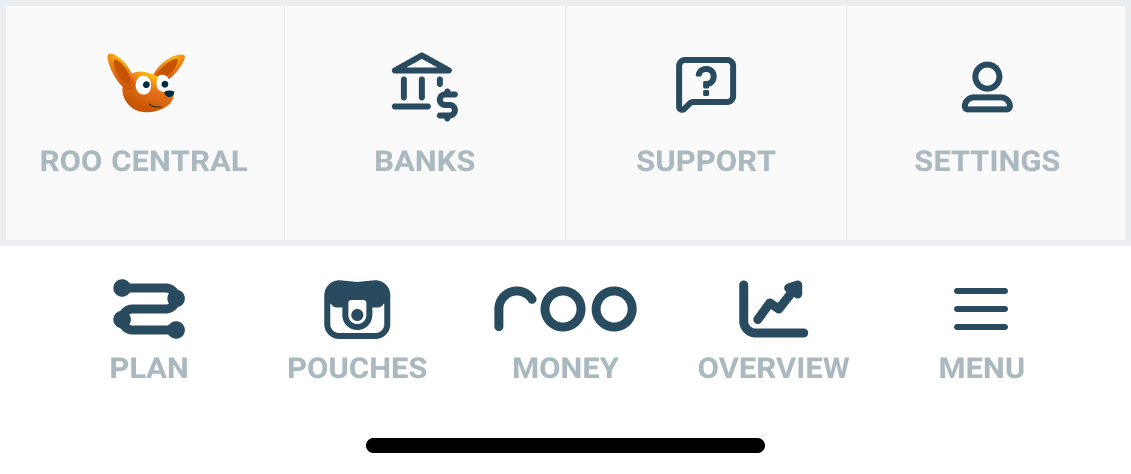
Step 2: Add A Bank
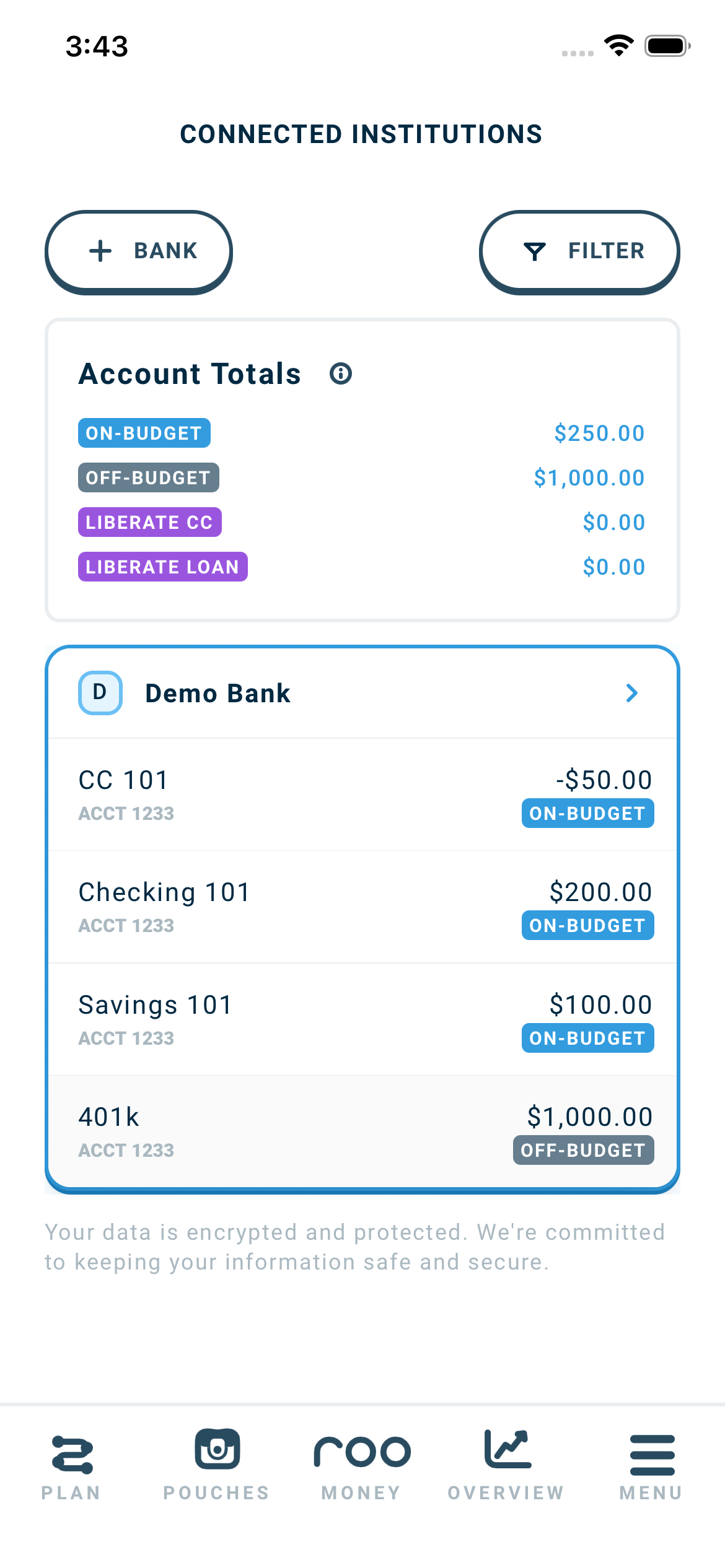
- Tap the + Bank button in the top left.
- Search for your bank.
- Select it from the list.
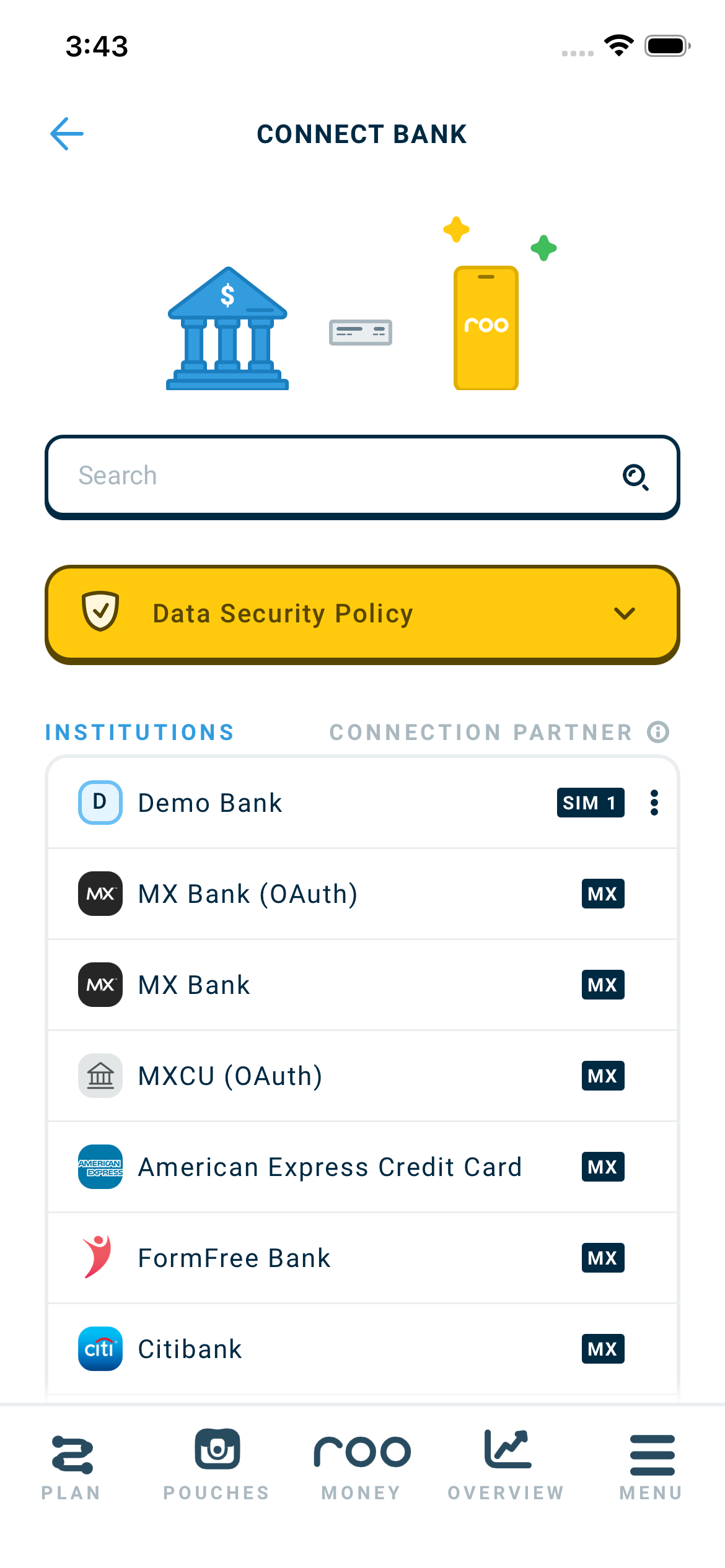
Step 3: Sign In Securely
- Enter your bank credentials.
- Complete any required verification steps.
Roo uses secure bank connections to sync your transactions automatically.
What Happens After You Select Your Bank
Once you select your bank, Roo securely hands you off to your financial institution to complete the connection.
You will sign in directly through your bank’s system. Some banks make this process quick. Others require several steps. This is for your protection, but it can feel tedious.
Step 4: Choose Which Accounts To Track
After connecting, you will see a list of accounts at that bank.
Select the accounts you want Roo to track.
You can:
- Include spending accounts
- Include credit cards
- Leave accounts untracked if they are not part of your plan
Tap Confirm when finished.
FAQs
Why does my bank ask for so many verification steps?
After you select your bank, Roo sends you to your institution’s secure login system.
Each bank sets its own security requirements. This may include text verification, app approval, security questions, or multiple authentication steps.
These steps are designed to protect your account, even though they can feel time-consuming.
See also: How To Connect Your Bank
Why does connecting sometimes take longer than expected?
Some institutions have more complex security systems than others.
Connection speed depends on:
- The bank’s authentication process
- The security level required
- The connection partner being used
Most connections complete within a few minutes, but some may take longer.
See also: How To Connect Your Bank
What are aggregators?
Roo uses secure connection partners, called aggregators, to retrieve your transaction data.
Different banks work better with different aggregators. Performance can vary depending on the institution.
See also: How To Connect Your Bank
Why does my connection keep breaking?
Frequent disconnections are usually caused by:
- The bank requiring re-verification
- The bank changing security settings
- Temporary issues between the bank and the connection partner
If a connection repeatedly disconnects, try reconnecting the account. If Roo offers multiple connection options, trying a different one may help.
See also: How To Connect Your Bank
Is my information secure?
Yes. Roo does not store your bank login credentials. Connections are handled through secure, encrypted systems provided by trusted partners.
See also: How To Connect Your Bank
Why don't I see my bank in the bank connection list?
Make sure you are searching by the official bank name. Some smaller institutions may appear under a parent company.
If you still cannot find it, contact support.
See also: How To Connect Your Bank
Why aren't my transactions updating?
Sometimes the connection to your bank stops working. Many banks require you to log in again from time to time, just for security. It can also happen when you change your bank password, or when the bank has a short problem on its end. When this happens, new transactions cannot come through to Roo.
Here is how to check and fix it:
- Go to Menu → Accounts.
- Click the institution name and check its connection status in the top right corner.
- If needed, reconnect the account.
See also: How To Connect Your Bank
What if I connected the wrong account?
First, decide what you mean by “account.” Do you mean a whole financial institution, or just one account inside it?
You connected the wrong financial institution (and all of its accounts)
You can disconnect and archive the whole financial institution.
- Go to Menu → Accounts.
- Select the financial institution you do not want.
- Click the Archive button to disconnect and archive it.
You connected the right financial institution, but want to leave out one or more accounts
You can hide any account you do not want in your budget or net worth.
- Go to Menu → Accounts.
- Select the account.
- Click the gear icon in the top right corner of the account box.
- Change Set Account Behavior to Hidden.
See also: How To Connect Your Bank