
Funding Your Pouches On Payday
What Funding Your Pouches Means
When Roo sees new income, it does not immediately fund your pouches.
Instead, Roo creates an income transaction card with a Split Income button.
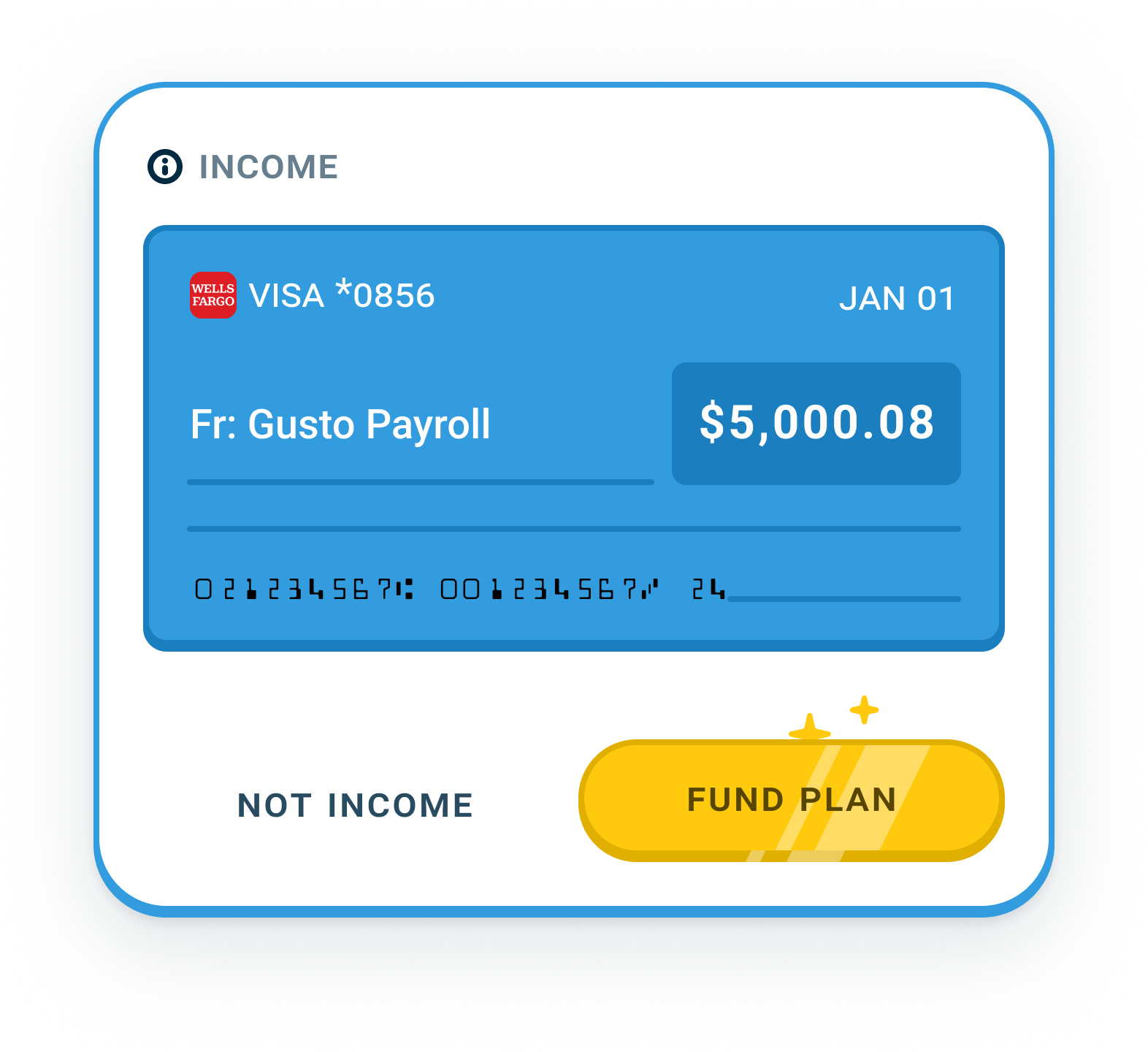
This is Roo asking a simple question:
Nothing moves until you say yes.
What Counts as Income Here
This article applies to income you want to run through your Income Splitter such as:
- Paychecks
- Bonuses or commissions
- Any other deposit you want to send to your pouches
When Roo sees money come in, it will give you the option to treat it like income or select Not Income. If you select Not Income, the transaction card becomes a regular transaction that can be swiped to your pouch of choice.
What Happens When You Tap “Split Income”
When you tap Split Income:
- The income flows through your Income Splitter River
- Money is automatically sent to your pouches according to your plan
- Percent of Income, Bills, the Reservoir to fund Daily Cash, Savings, Goals, and other pouches are funded based on your setup
Roo already knows where every dollar should go, so it all happens automatically.
Once allocated, the income becomes part of your budget.
Why Income Waits Before Funding
Income pauses intentionally.
This gives you space to:
- Confirm the income is correct
- Decide when it funds your pouches
- Make one-time edits to the Income Splitter River so it all ends up where you need it
Roo never assumes. You choose when and how money gets sent through your Income Splitter River.
Making Adjustments Before Funding (Optional)
When you tap Split Income, you can either send this paycheck through with your current Income Splitter River settings, or review and adjust it first on the Edit Split screen. Both are fine.
Edit Split
This screen shows how your Income Splitter River will split this income if you leave it alone.
You can:
- See exactly where the money will go
- Make one-time adjustments using the sliders
A few important things to know:
- You must allocate 100% of the income
- If you add money to one place, you must take it from another
- These changes apply only to this paycheck
These edits only steer this one paycheck. Next payday, Roo goes back to the amounts on your Income Splitter River screen, so to change your plan for good, edit it there, in the Budget tab.
Click Finalize when the amounts look right (adjust the sliders first if you want). Your income will then appear in your pouches according to your Income Splitter River plan.
Example: How I Use Edit Split
Roo here! Most paychecks, I just tap Finalize on the Edit Split screen and keep hopping.
But last month, my joey needed an unexpected vet visit. One of those “this is fine… but also not cheap” moments.

When that paycheck came in, I tapped Split Income, but instead of immediately finalizing it, I made some adjustments.
On the Edit Split screen, I nudged a little more money toward my vet and savings pouches and pulled a bit from places that could wait.
The adjustments only applied to that paycheck. My regular plan stayed exactly the same for next time.
A Simple Way To Think About It
You are always in control.
You can:
- Let the plan run automatically
- Or fine-tune a single paycheck when life calls for it
Either way, Roo handles the mechanics so you don’t have to move money manually.